
Earlier this week, Reed, our team lead, showed us some extensions for VS Code that he uses and which he thought would be helpful for us. They mainly add to the IDE’s highlighting of code so that its easier to follow start and end points for nested elements and also do things like quickly visualize nesting level.
Here’s what he shared, along with snippets of their descriptions:
Highlight Matching Tag
This extension is intended to provide the missing functionality that should be built-in out of the box in VSCode – to highlight matching opening or closing tags. Optionally it also shows path to tag in the status bar.
Even though VSCode has implemented some basic matching recently, it’s just that – basic. The built-in functionality is to match only from tag name and only for some file extensions. This extension will try to match from anywhere: tag attributes, from inside strings, any file, while also providing extensive styling options to customize how tags are highlighted.
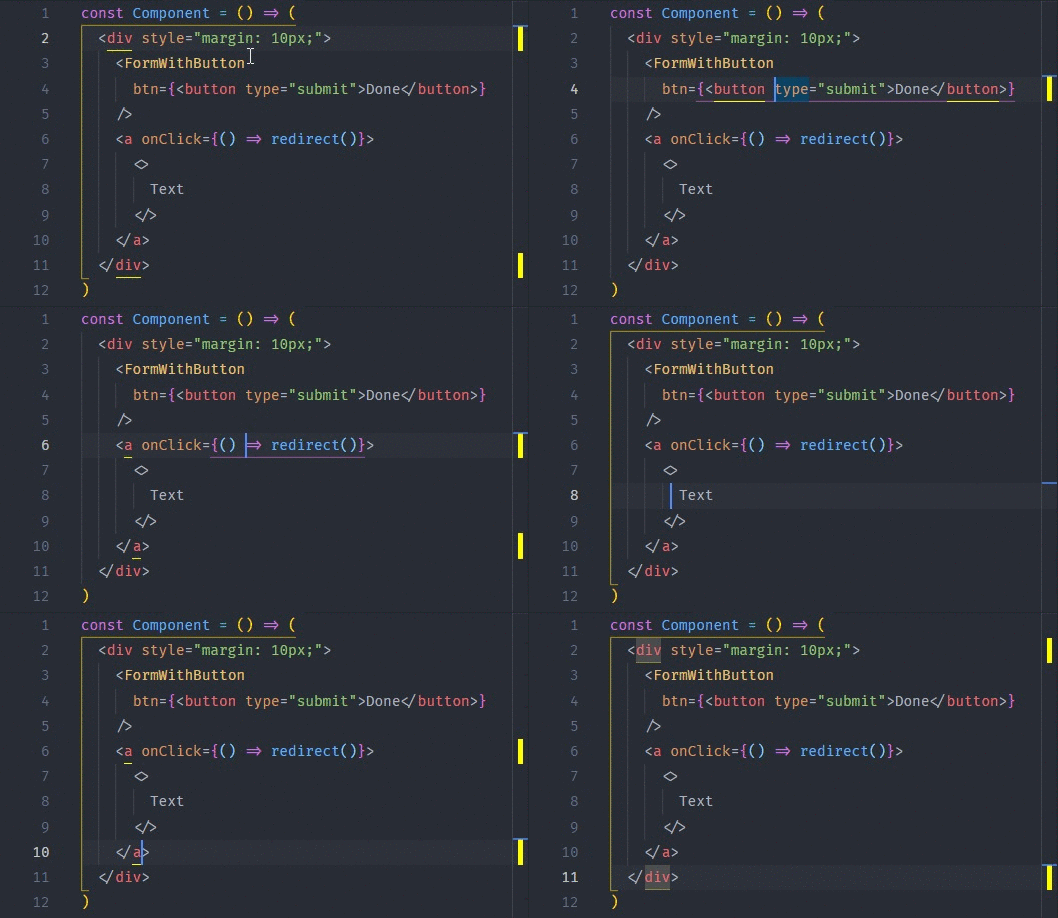
Bracket Pair Colorizer 2
This extension allows matching brackets to be identified with colours. The user can define which tokens to match, and which colours to use.

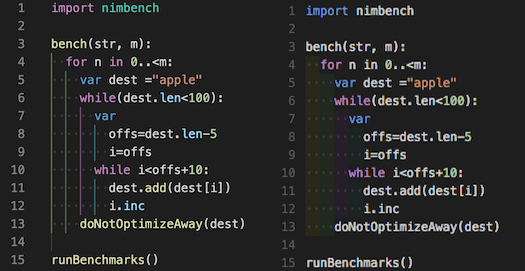
Indent-Rainbow
A simple extension to make indentation more readable
This extension colorizes the indentation in front of your text alternating four different colors on each step. Some may find it helpful in writing code for Nim or Python.
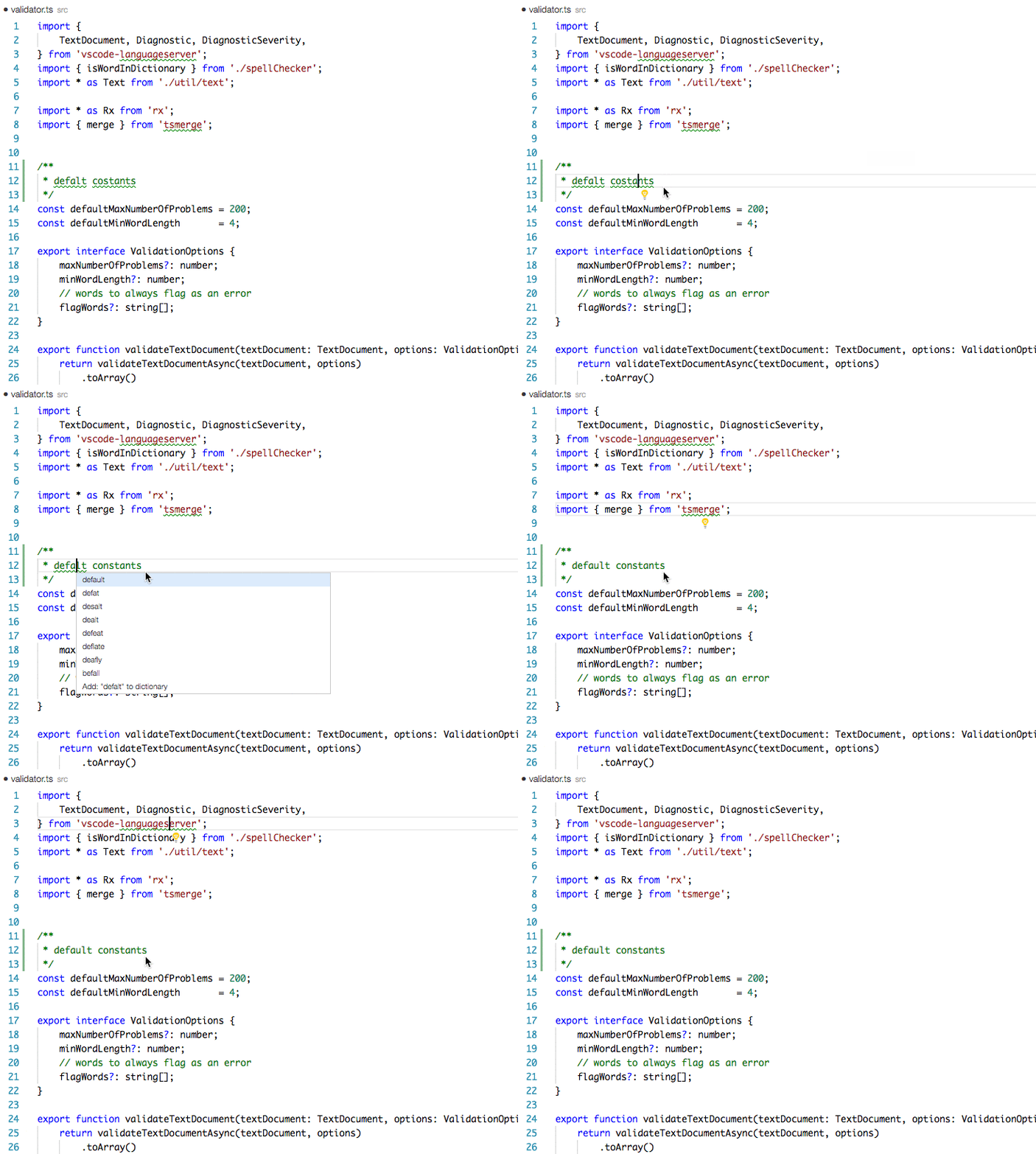
Code Spell Checker
A basic spell checker that works well with camelCase code.
The goal of this spell checker is to help catch common spelling errors while keeping the number of false positives low.
In addition to what Reed shared (I’ve been using all of them), some people in the Slack also suggested the following two extensions:
htmltagwrap
Wraps your selection in HTML tags. Can wrap inline selections and selections that span multiple lines (works with both single selections and multiple selections at once).
To use, select one or many chunks of code and press “Alt + W” (“Option + W” for Mac).

This last one is a Chrome extension, not a VS Code one:
Pesticide for Chrome
This extension inserts the Pesticide CSS into the current page, outlining each element to better see placement on the page.
In this version the banner at the bottom is off by default. To turn it on hold the control key. Be sure that you’ve “clicked” into the window otherwise the browser won’t be able to tell that you’re typing (that’s just how browsers work).
 REDO FROM START
One thought on “VS Code extensions”