Its been about 8 months since I last posted here. I’m way overdue, but life has been happening. I’ve been interviewing at different places for a software engineer position and wanted to talk through questions that I was asked at some of them. This is one that I was asked about and had to write code for on paper, in front of a panel of three people. They had a bunch of form-related questions on one side of the paper and SQL questions on the other. For this question, there was a screenshot of an area of a form with about 30 checkboxes. They asked how I would get the value from only one checkbox in the section.
The short answer is that we could use JavaScript to grab the checkbox and get its value. There are several ways to target an HTML element using JavaScript. The most direct way is to give the element an ID and then use .getElementById(), but individual form elements might not necessarily have an ID. In that case, we can use .querySelector() along with an attribute of some kind to target the element. Here’s an example:
<form id="myForm">
  <label>
    <input type="checkbox" name="option1" value="Option 1"> Option 1
  </label>
  <label>
    <input type="checkbox" name="option2" value="Option 2"> Option 2
  </label>
  <label>
    <input type="checkbox" name="option3" value="Option 3"> Option 3
  </label>
</form>

<button id="getValueBtn">Get Value</button>
In the above example, we have a form with three checkboxes. Each checkbox has a name and value attribute. They’re all different from each other (“option1”, “option2”, “option3”). None has an ID that can be targeted, so we’ll use the name attribute to target a given checkbox.
document.getElementById("getValueBtn").addEventListener("click", function() {
  const checkbox = document.querySelector('input[name="option1"]')

  if (checkbox.checked) {
    console.log("Checked")
  } else {
    console.log("Not checked")
  }
})
The JavaScript above targets the button by ID and adds an event listener to it. The listener is waiting for a click event, and when that event happens to the button it fires off the anonymous function that’s inside of the event listener. That function logs whether the checkbox is checked or not by seeing if the .checked property is true.
Note the query selector. It’s not using a class or ID to target the checkbox. Instead, it’s finding the element (input) and selecting the right one using the name attribute – in this case, “option1”. The square brackets aren’t JavaScript bracket notation. They’re an attribute selector. The text inside is also not considered a key/value pair. It’s an HTML attribute. This is why you’re not supposed to cross the streams when busting ghosts.
But, whatabout…
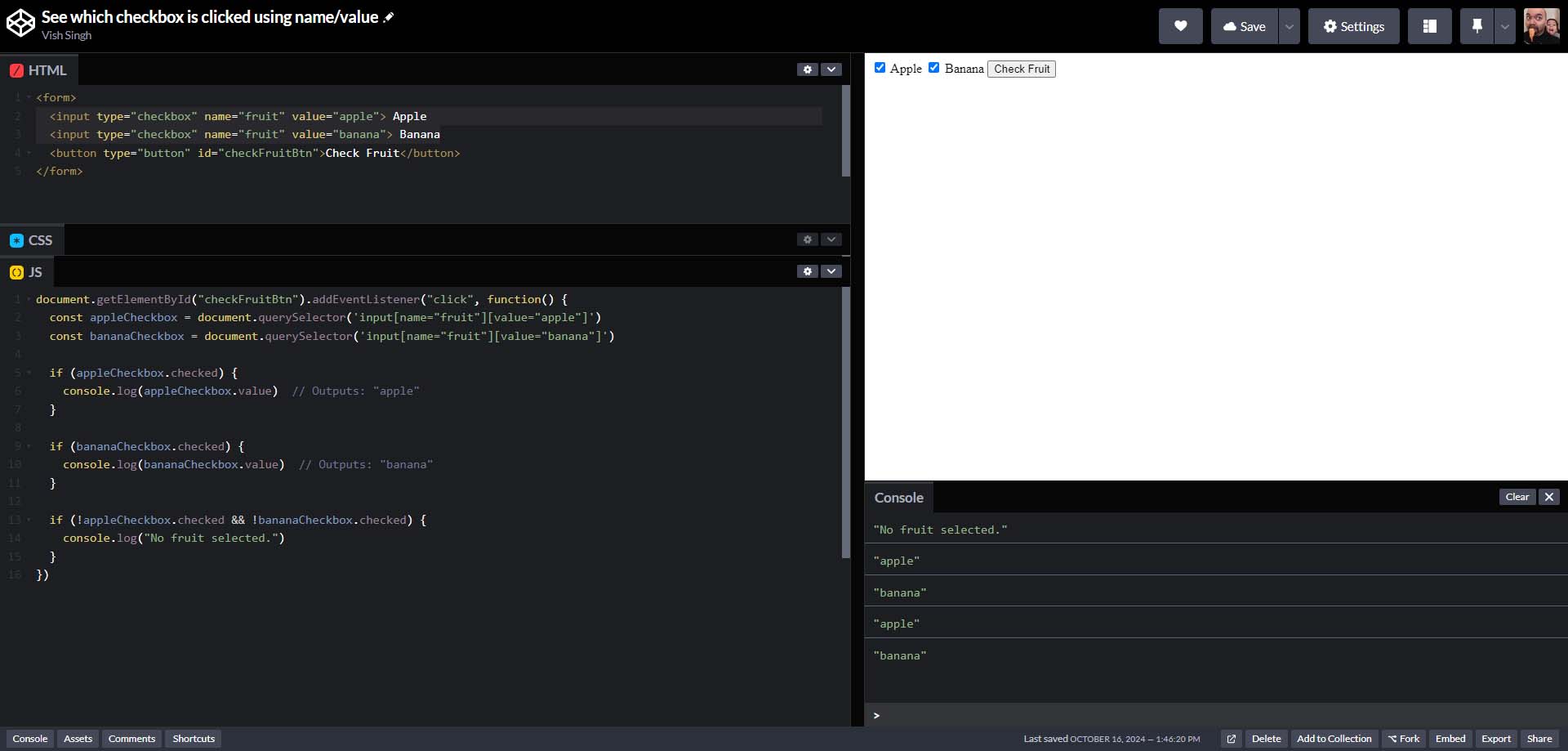
<input type="checkbox" name="fruit" value="apple"> Apple
<input type="checkbox" name="fruit" value="banana"> Banana
const appleCheckbox = document.querySelector('input[name="fruit"][value="apple"]')
const bananaCheckbox = document.querySelector('input[name="fruit"][value="banana"]')In the above example, “apple” and “banana” are checkboxes and both of them have the same name attribute. This differs from the first example in which each checkbox had a unique name. Note that the query selectors now target the checkboxes a little differently. They’re using both the name and value attributes to find the right checkbox.
It’s possible to use only the value attribute, but that’s considered less safe to do unless the document in the DOM is assured to only have elements with unique values. Using the name attribute narrows down the scope of elements being targeted, and combining that with the value attribute further zeroes in on the specific checkbox (or element) being sought.
Here’s a link to a Codepen project that illustrates this last case using both name and value attributes to select a checkbox: https://codepen.io/vishalicious/pen/OJKmENm
 REDO FROM START