
I’m on the job hunt and have been interviewing recently. Due to the current market, I recently added QA Engineer roles to my search, expanding from front-end, back-end and full-stack web developer positions. Last week, I was referred to a QA Engineer position by someone who graduated from the same bootcamp as me. There was a take-home assignment to complete. Part of the assignment involved using Microsoft Playwright, a testing, automation and web-scraping library. It was my first brush with Playwright, and with automation. I found it really interesting and I’m excited to learn more about automation and web-scraping – but I’ll get into that in another post once I’ve delved into both more.
One of the tasks was to scrape a news aggregator website using Playwright, get a list of the top 10 articles from it and save the titles and URLs of those articles to a CSV file. I’ve actually never used JavaScript to do this, so I learned the basics of the process on the fly through a combination of Googling and ChatGPT.
I used Playwright in Node, so it had access to the local file system. Browsers don’t generally have access to the local file system as a security measure to protect against malicious activity. I believe that they can gain access in a limited manner using the FileReader API, but it’s somewhat locked down. Node has access to all of the file system that the OS and user permissions allow. It can read and write files, work with directories and do all of the typical tasks that working with the file system entails.
Overview
Working with CSV files generally involves reading and writing data using CSV (Comma Separated Values) format. The data in the files is separated into rows and data in each row are separated by commas. It can look like this:
Title,URL

January 2024 Update: Networking,https://neophyte.home.blog/2024/01/14/january-2024-update-networking/

November 2023 Update,https://neophyte.home.blog/2023/11/09/november-2023-update/

JavaScript’s Date() setInterval() and style property,https://neophyte.home.blog/2023/01/13/javascripts-date-setinterval-and-style-property/
The first row contains header information – essentially the names of the columns. Subsequent rows have the actual data, with one entry per row or line.Each piece of data in a row is separated using a comma with no spaces in-between.
These files are easily readable by spreadsheets. Growing up, I always saw them being opened using MS Excel, but now Google Sheets, LibreOffice and other applications exist that can be used to view and work with them. Opening a CSV file in a spreadsheet program displays the data using rows and columns, like any other spreadsheet.
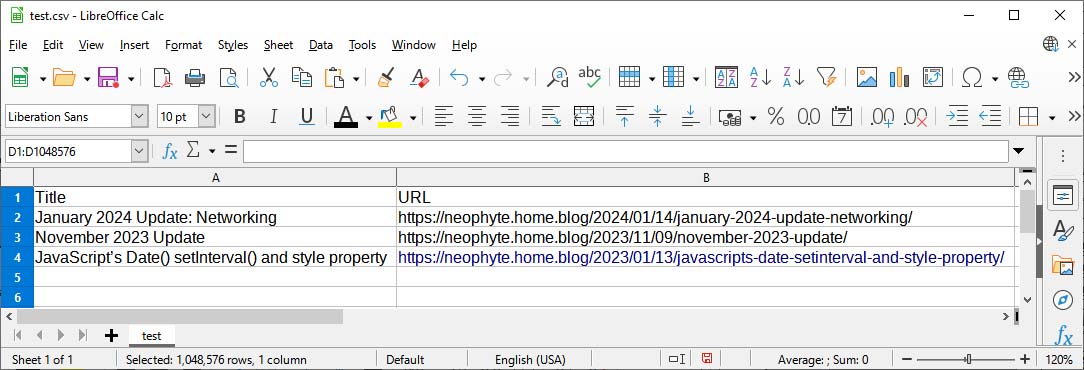
There are JavaScript libraries available to read from and write to CSV files. I wanted to avoid importing libraries and focus on using fundamental JavaScript methods to work with CSV files.
Creating and writing to a CSV file
To begin, import “fs” into the JavaScript file like this: const fs = require(“fs”)
fs is the built-in file system module in Node. It will be used to perform the file operations.
Assemble data to save to a CSV file. All that’s needed is an array of arrays. The way that I did it for the assignment was to scrape an area of the assigned website for links and create an array that saved the title (innerText) and URL (href) to an array. During the scraping process, I used another piece of data to filter through the links to make sure that they were indeed articles and not links to other things.
Prior to that, when I was testing, I used a hard-coded array with completely different data (name, age, city). The important thing is that you have an array of arrays, like this:
const csvData = [

    ['Name', 'Age', 'City'],

    ['Vish', 48, 'New York'],

    ['Tsu', 55, 'Los Angeles'],

    ['Mika', 6, 'Chino Hills']

]
Each array in the example above will be transformed into a row of data in the CSV file. When you have the array of data, then the CSV file can be created. This is the process I used:
function createCSV(data) {

    // convert data to csv string

    function convertToCSV(data) {

        const csvArray = [["Title", "URL"],]


        data.forEach(row => {

            csvArray.push(row.join(','))

        })


        return csvArray.join('\n')

    }


    const csvString = convertToCSV(data)


    // filename for csv (will save in root of project folder)

    const csvFile = "top-ten.csv"


    // write to file

    fs.writeFileSync(csvFile, csvString, "utf-8")


    console.log("CSV file created at: ", csvFile )

}
In the above code, createCSV() takes in data, which is the array of arrays that was created earlier.
- A function is defined inside of createCSV() called convertToCSV() that will actually do the work of building the file
- An array is initialized in it called csvArray with a single row of data in the form of another array that has two strings in it that will become the column headers.
- Below this function, a const called csvString is declared to contain the CSV data. It passes the array that createCSV() took to convertToCSV() and stores the returned response.
- Another const called csvFile is declared to save the CSV’s filename.
- Now we use fs, which was imported at the top of the file, along with a method called writeFileSync() to save the data from csvString to the local hard drive. It takes in 3 arguments:
- The file name
- The data to be saved
- The encoding format (“utf-8”)
- I then logged the file name to the console so that the viewer can see the name of the file. fs saves it in the same directory that the JavaScript file is run from, unless a different directory is named in the arguments it received.
That’s it. We passed the array of arrays to the function, which then pushed each row onto its own line and separated the values in the subarray using commas. That chunk of data is saved to a variable. The variable’s data is then saved on the local file system using a name that we specify in the code.
It’s a little hard to follow the first time doing it, but it gets easier once the process is understood. The file should be saved in the same folder that the JavaScript file was run from (unless a different folder was specified in the file path when saving. Open it to see its contents. Look at it using a text editor like Notepad and a spreadsheet application.
Reading from a CSV file
Once I was able to successfully create and save a CSV file, I wanted to see how to read from it, because I’ve already read data from localStorage, SQL databases and Firebase but I’ve somehow never read from local files using JavaScript.
To do this, I created another function called readCSV(). It takes in a file as its argument. It then uses fs to read the file from its location in the file system, parses the data and logs it to the console. This is how the function looked:
function readCSV(filename) {

    // Read the CSV file

    fs.readFile(filename, 'utf8', (err, data) => {

        if (err) {

            console.error('Error reading CSV file:', err)

            return

        }


        // Parse CSV data

        const rows = data.split('\n')

        const headers = rows[0].split(',')


        const results = rows.slice(1).map(row => {

            const values = row.split(',')

            return headers.reduce((obj, header, index) => {

                obj[header.trim()] = values[index].trim()

                return obj

            }, {})

        })


        // Display the contents of the CSV file

        console.log("\x1b[33m"+"\n-+- TOP TEN ARTICLES FROM HACKER NEWS -+- \n"+"\x1b[0m")


        results.forEach(result => {

            console.log("Title: ", result.Title)

            console.log("URL:   ", result.URL, "\n")

        })


        console.log("\x1b[31m"+"\nCancel this process and return to the terminal by pressing CONTROL-C"+"\x1b[0m")

    })

}
In the above code, readCSV() takes in the CSV file that was saved.
- It calls fs with the readFile() method to load the contents of the file. readFile() takes in the file name, the encoding type (“utf8”) and a calls a callback function with two arguments:
- err to handle any errors loading the file
- data to hold the file contents
- Next, the contents of the CSV file are parsed:
- A const called rows is declared, which takes the data from fs.readFile() and splits it wherever a new line character (“\n”) is found
- A const called headers is declared that takes the first row in the file (row 0) and splits it into an array of values wherever it finds a comma
- These headers will be used as keys when creating objects for each of the other rows of data
- Rows are now mapped to objects in the results const.
- slice(1) tells Node to exclude the first row (headers) of the rows array
- map() then iterates over the rest of the rows and creates an object for each one
- For each row, the row values are split() into an array (“values”) wherever a comma is found
- reduce() is used to create an object (“obj”) that uses the headers as keys and the values as the values
- These values are then returned to results
Finally the results are logged to the console. Logging them normally shows an array of objects. I formatted the output for readability using new lines and some text colors.
This is a very basic process using only Node/JavaScript and no libraries. There are many full-fledged libraries that provide methods to create and read from CSV files.
Resources
- MDN: File System API (for the terminal / Node)
- MDN: File Reader API (for the browser / JavaScript)
 REDO FROM START